
The TV guide
The program grid (EPG): browse the days, watch live or catch-up, set a reminder or a recording.
On this page
Opening the guide
On phones and tablets
In portrait: tap Guide in the TV header, or the Guide tile on the home screen. The guide opens on the current category.
In landscape and on tablets, it’s built into TV.
On TV, with the remote
The guide is built right into TV: choose a category, and the program grid appears in the middle, with the preview on the right.
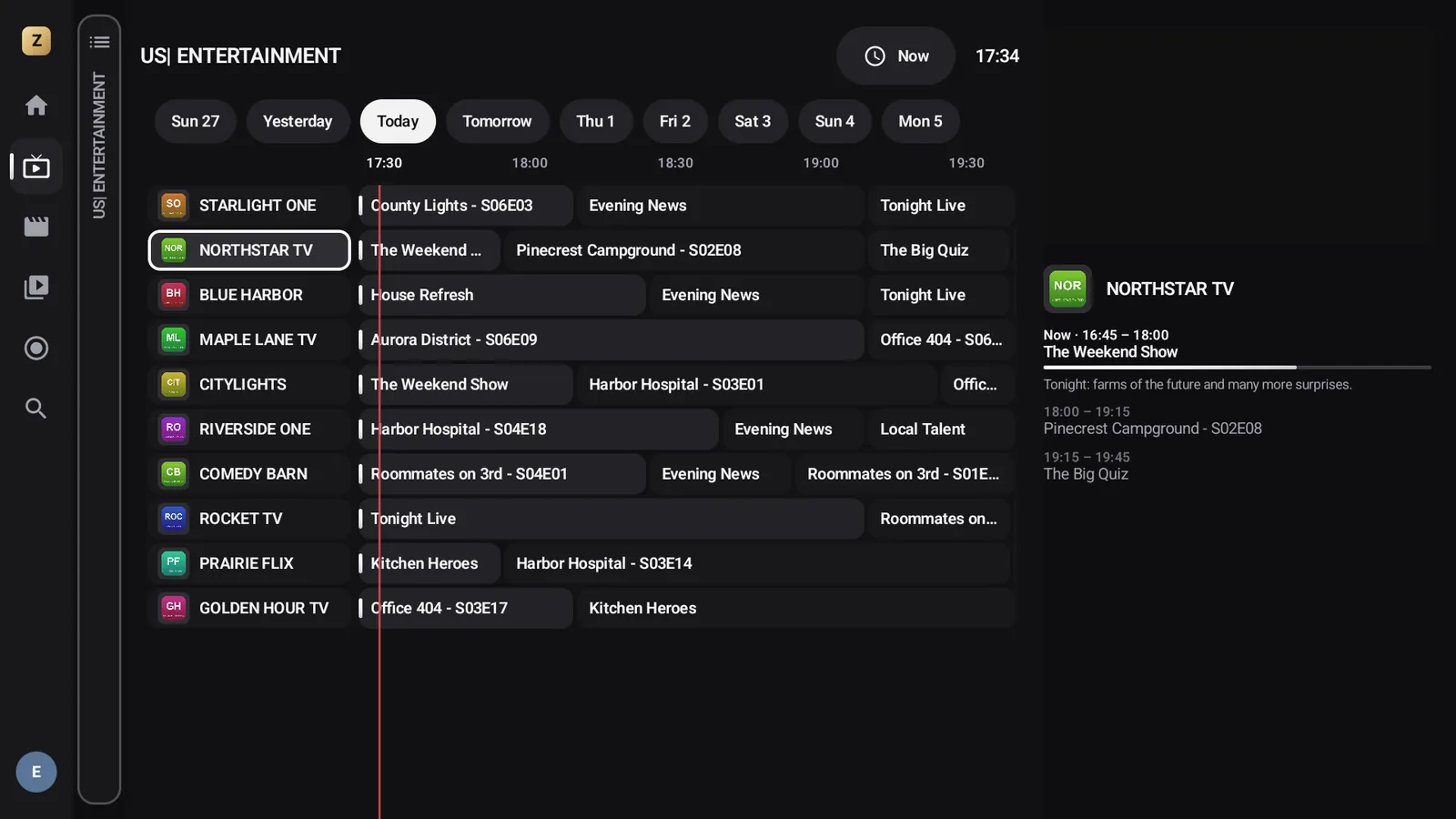
Choosing a program
A program that’s on now starts right away (as a preview on TVs). A past or upcoming program opens its details: title, channel, day, time, length, episode, category and synopsis. A long-press always opens the details.
The details page offers the actions available at that moment:
| Action | When |
|---|---|
| Watch live | Program on now |
| Watch from the beginning | Program on now, on a channel that offers catch-up |
| Watch (catch-up) | Program that aired less than 7 days ago, on a channel that offers catch-up |
| Record the rest | Program on now |
| Record | Upcoming program |
| Record all episodes | Every airing of the same title on the same channel, including future ones |
| Remind me | Upcoming program |
| Go to … | Opens the channel |
Catch-up
Some providers keep the last few days of programs on certain channels (catch-up, also called “replay”). Zappia detects it on its own: the Watch from the beginning and Watch (catch-up) actions only appear on those channels. Otherwise, Zappia shows This channel doesn’t offer catch-up.
Reminders
Remind me schedules a notification 2 minutes before the start: Coming up: …, with the channel and time. Tap the notification to open the channel. On Android 13 and later, Zappia first asks for permission to show notifications.
Guide updates
The guide updates itself in the background, every 2 hours by default, without ever interrupting what you’re watching. To change how often: SettingsTV guideAutomatic update: every 2, 4, 8, 12 or 24 hours, or Never (manual).
Update the guide now forces an immediate update and shows how many programs were received.
Advanced guide settings
In expert mode, SettingsTV guide also offers:
- Days of programs to keep: 3, 5, 7 (the default), 10 or 14 days ahead;
- Guide time offset: from −3 h to +3 h in half-hour steps, if the times don’t match the picture;
- Channels and movies update: how often the catalog is updated (every 24 hours by default).
To use a guide other than your provider’s, enter its XMLTV address in Custom XMLTV guide, among the playlist’s advanced options (see Manage your playlists).