
Movies and series
Browse the categories, read a movie’s or a series’ details, pick up where you left off and play episodes back to back.
On this page
Browsing the categories
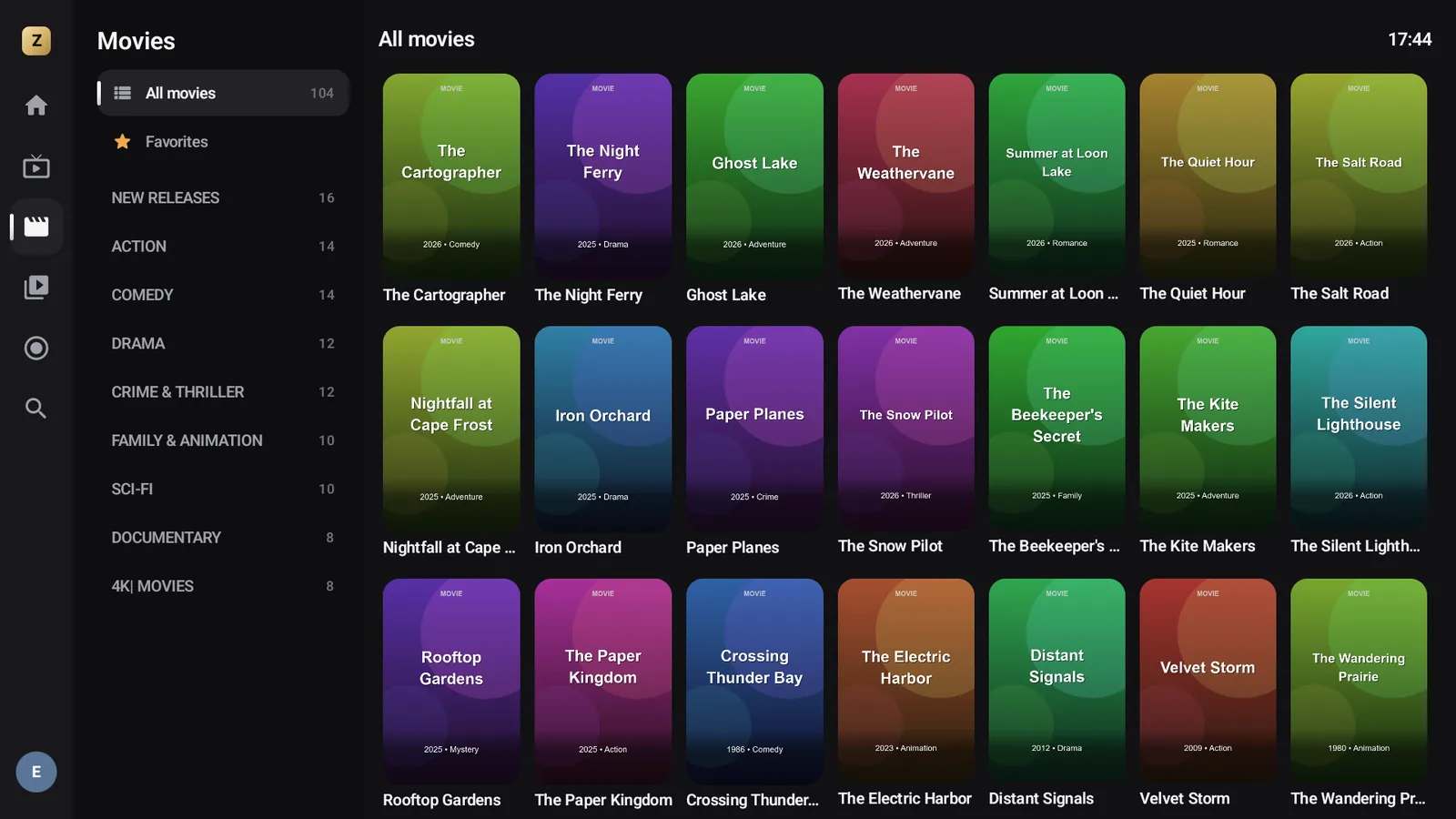
Movies and Series start with All movies (or All series), your Favorites Premium, then your provider’s categories.
On phones and tablets
Tap a category to open its poster grid; the Back to categories arrow takes you back to the list. The Search for a movie bar filters the category Premium.
On TV, with the remote
The categories are on the left, the grid on the right. Moving over a category loads its grid; ▶ takes you into the posters. To look for a title, go through Search in the menu Premium.
A movie’s details page
Tap a poster (or press OK) to open its details page: poster, year, length, genre, rating, synopsis, Director, Starring and Release.
- Play, or Resume at 42:10 if you’ve started it;
- From the beginning to start over;
- Favorite Premium to add it to your favorites (In my favorites if it’s already there).
A series’ details page
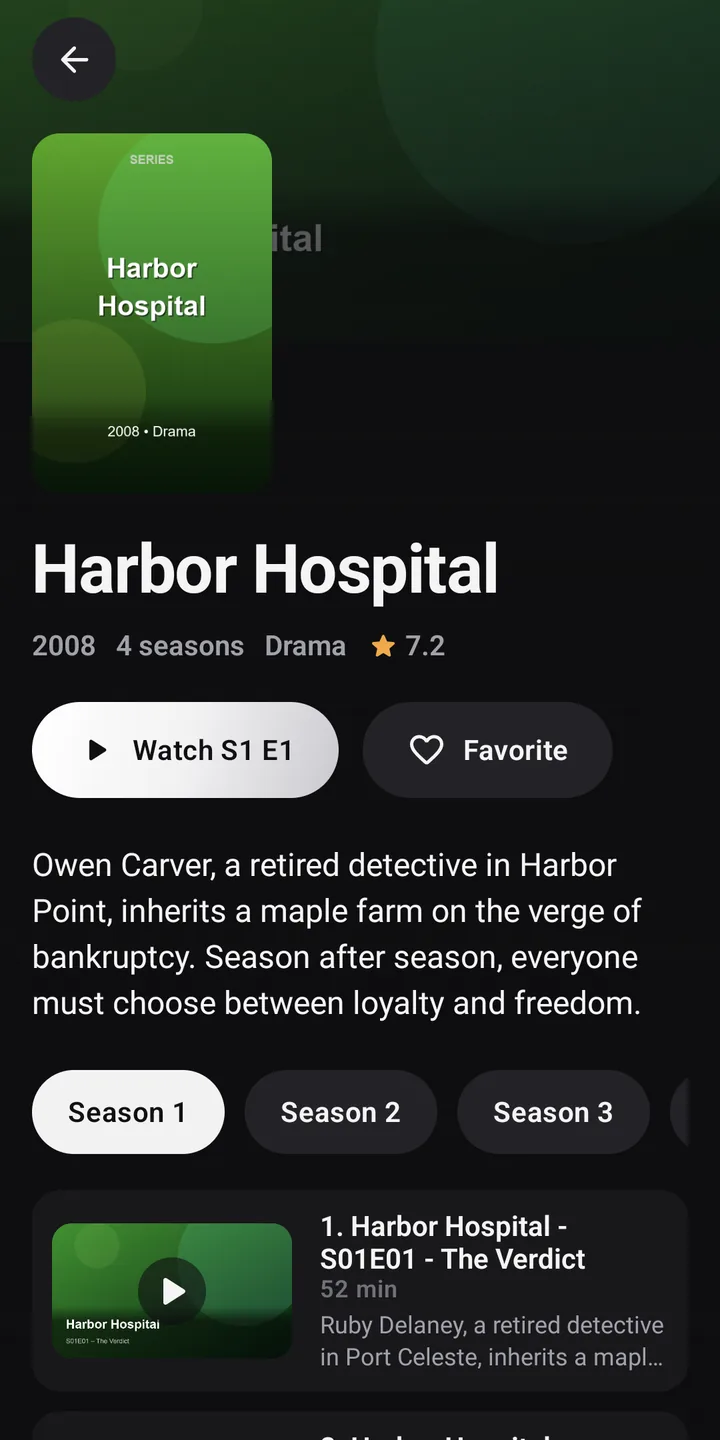
A series’ details page shows the number of seasons, the genres and the rating, then a big button that knows where you are: Resume S1 E3 for the episode you started, otherwise Watch S1 E4 for the episode after the last one you watched, or the very first one.
The Season 1, Season 2… chips switch seasons. Each episode shows its thumbnail, title, length, synopsis and progress. A Watched check mark is added automatically once you’ve watched it to the end (past 92%).
Resume and next episode
Zappia remembers where you stopped in every movie and every episode (for each profile). The Continue watching row on the home screen gathers them, and offers the Next episode once you’ve finished the previous one. At the end of an episode, the next one starts after 10 seconds.
See also History and resume.
Favorites Premium
Long-press a poster, then choose Add to favorites. They show up in the Favorites group of Movies or Series. The same menu offers View details or View episodes.
“Movie not found”
The Movie not found or Series not found messages mean your provider removed the title since the playlist was last updated. Update the playlist (SettingsMy lists, then Update now).