
Live TV
Categories, preview and full screen, changing channels, HD/FHD/4K versions, favorites and recent channels, by touch or with the remote.
On this page
Channel groups
The TV section starts with three handy groups, then your provider’s categories:
- Favorites Premium: your favorite channels, in the order you choose;
- Recent: the channels you watched last;
- All channels: the whole playlist;
- then the categories exactly as your provider sends them, with their original names and order. The only change: the countries chosen in your profile move to the top.
A padlock marks the groups protected by the parental code.
Watching a channel: preview, then full screen
On phones and tablets
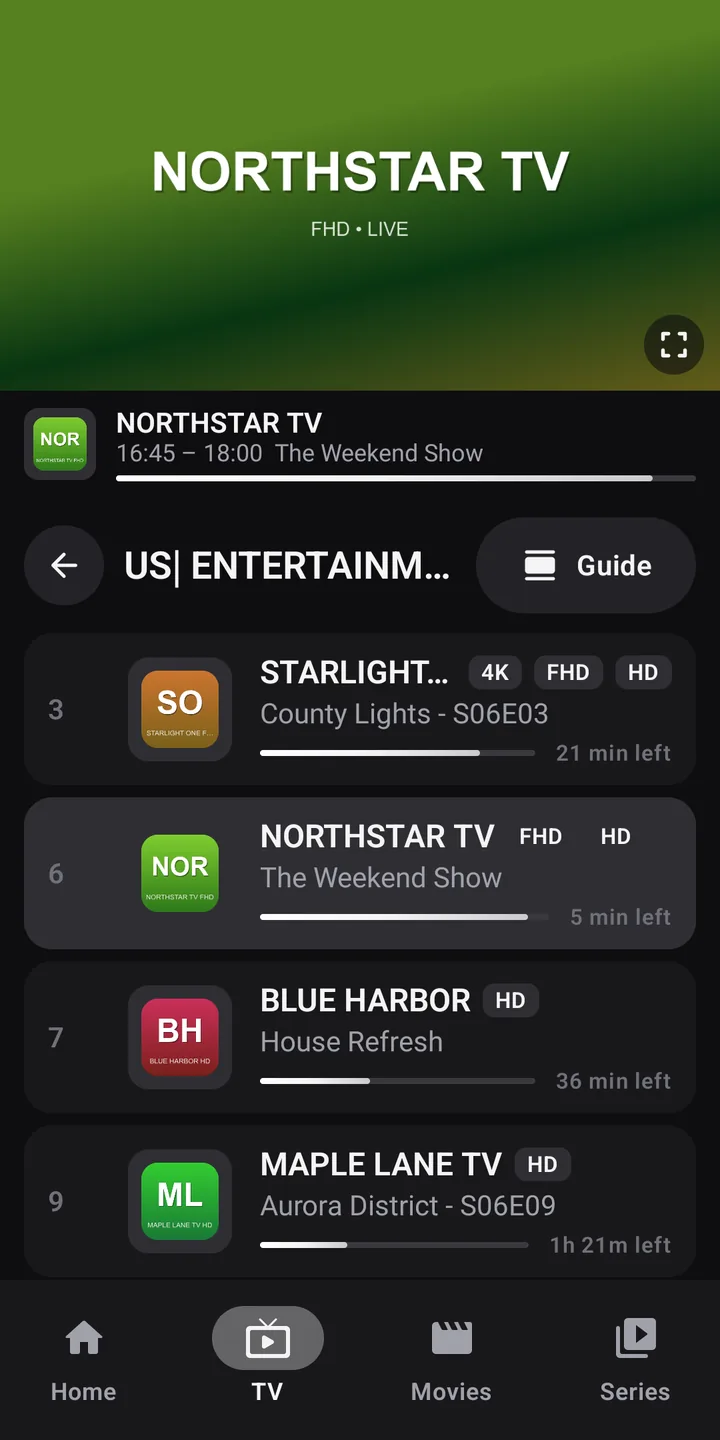
Phone in portrait: tap a group, then a channel. The first tap shows it as a preview at the top of the screen; a second tap on the same channel, or a tap on the preview, switches it to full screen.
Tablet or landscape: three columns, with the groups, the channels and, on the right, the preview with the program on now and the next two.
On TV, with the remote
The group column folds away as soon as you move into the channel list. First OK on a channel: preview on the right. Second OK: full screen, without reloading the stream. Back shrinks the picture again.
With Premium, the middle of the screen shows the TV guide grid directly.
Each channel row shows its number, logo, name, the available qualities (4K, FHD, HD, SD) and the program on now with the time left Premium.
Changing channels
- Next or previous channel: ▲ ▼ or CH+ CH− on the remote; a vertical swipe on the picture by touch. To reverse the direction: SettingsPlaybackSwap up and down for zapping (expert mode).
- By number: type the number with the remote’s number keys; Zappia goes there one second after the last digit. A number that isn’t in the group is looked up in the whole playlist.
- List over the picture: ◀ in full screen shows the group’s channels without stopping playback.
- Last channel: the remote’s “previous channel” key goes back to the channel you were watching just before.
HD, FHD and 4K versions
Many providers offer the same channel in several qualities. Zappia groups them on a single row (SettingsChannels and groupsGroup versions of a channel, on by default) and plays the version chosen in Preferred quality: Automatic (FHD), 4K, Full HD, HD or SD (slow connection).
If a stream drops, Zappia retries twice and tells you so (Trying to connect again (2 of 3)…), then automatically switches to another version of the same channel. During playback, the Quality button lets you pick a version yourself.
Favorites Premium
- Long-press a channel (finger held down, or OK held).
- Choose Add to favorites. A star appears next to its name.
Your favorites appear at the top of TV and on the home screen. To reorder them: long-press a channel in the Favorites group, then Move. To remove one: long-press, then Remove from favorites. Each profile has its own favorites.
During playback, the Favorite button does the same thing.
Recent channels
The Recent group and the Recently watched row on the home screen keep your latest channels. To remove one: long-press, then Remove from recent channels.
Live pause
You can pause live TV: the program keeps being stored on the device and resumes in Delayed mode right where you left it. Back to live brings you back to real time. Details in The player.