
Profiles
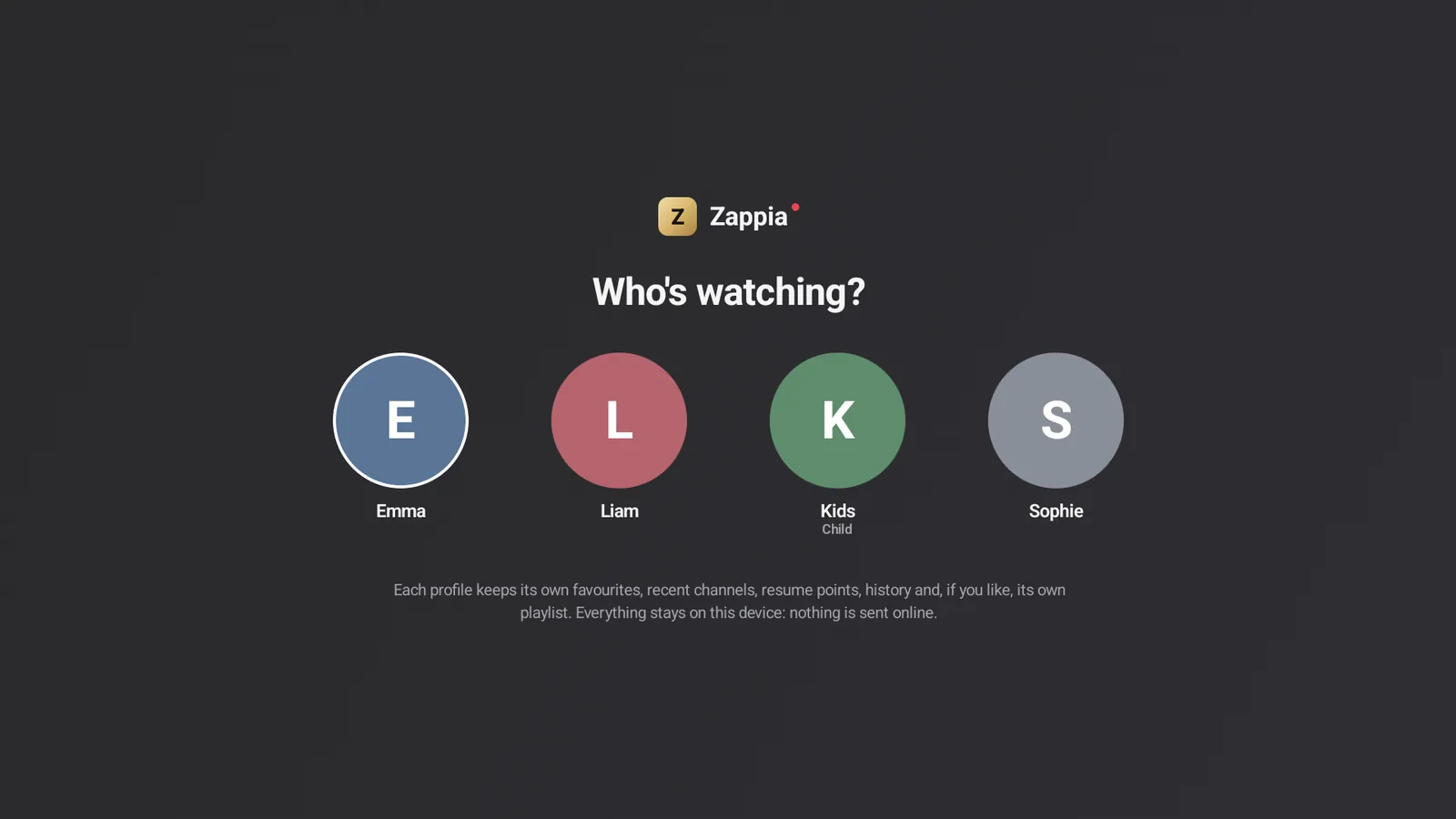
“Who’s watching?”: a profile for each member of the household, with their own favorites, resume points, history and even their own playlist.
On this page
What each profile keeps
Just like on the big streaming services, each profile has its own:
- favorites (channels, movies, series);
- recently watched channels;
- resume points and next episodes;
- watch history;
- countries first;
- and, if it likes, its own playlist.
Everything stays on the device: nothing is sent online.
“Who’s watching?”
With several profiles, Zappia opens on Who’s watching?: tap your avatar (or select it and press OK). The screen also comes back when you return to Zappia after going through the device’s home screen.
To stop showing it at startup, turn off “Who’s watching?” at startup on the profiles screen.
Switch profiles
On phones and tablets
Tap your profile avatar at the top of the home screen, then the profile you want.
On TV, with the remote
Go all the way down the left menu to your profile avatar, press OK, then choose the profile.
The current profile has a gold ring around it. From a kids profile, switching to an adult profile requires the parental code.
Add a profile Premium
- On the profiles screen, choose the Add tile.
- Type the First name.
- Check Kids profile if it’s for a child: groups protected by the parental code won’t appear in it.
- Optional: choose up to 5 Countries first.
- Tap Create.
The new profile starts with the current playlist.
Edit or delete a profile
On the profiles screen, choose Manage profiles (Which profile to edit?), then the profile. Or long-press its avatar: Use this profile, Edit profile, Delete the … profile.
Edit profile lets you change the First name, the Color and the Kids profile option. Countries are changed in SettingsChannels and groupsCountries first Premium, for the current profile.
Deleting a profile erases its favorites, recent channels, resume points and history. From a kids profile, managing or deleting a profile requires the parental code.
Delete the last profile
You can, to start from scratch. Zappia then offers:
- Delete the profile (keep my playlists): you create a new profile, and your playlists stay;
- Erase everything (profile, playlists and settings): Zappia goes back to how it was on day one.
A playlist for each profile
With several playlists Premium, each profile remembers the one it uses: choose it in SettingsMy lists, then Use this list. When you switch profiles, Zappia switches to that profile’s playlist. See Manage your playlists.